First of all, you must check the following items in order to guarantee that you are able to successfully install and set up your eSIM:
- Your device needs to be eSIM compatible and network unlocked. (see "What devices support eSIM?" + "How do I check if my Android device supports eSIM?")
- You have a stable connection, preferably WiFi. (You need to download the eSIM properly to your device and a stable internet connection is a must.)
Depending on the eSIM you purchase, there are multiple ways to add an eSIM to your device:
- Directly installing from the Airalo app — this the easiest method, but not always available
- Scanning the QR Code from the "QR code" tab
- Adding the installation details manually from the "Manual" tab
I. PREPARATION
- Login to your Airalo account.
- Go to My eSIMs.
- Look for the eSIM you want to install.
- Tap the Details button.
- Tap Install eSIM/Access Data
- Select which type of installation
- Tap the QR Code or Manual Installation. Please print the code or use a different device to display the QR code.
II. INSTALLATION
Option 1: By scanning the QR code
1. Choose the "QR Code" tab at the top (You may select the share QR button for sharing it with another device). 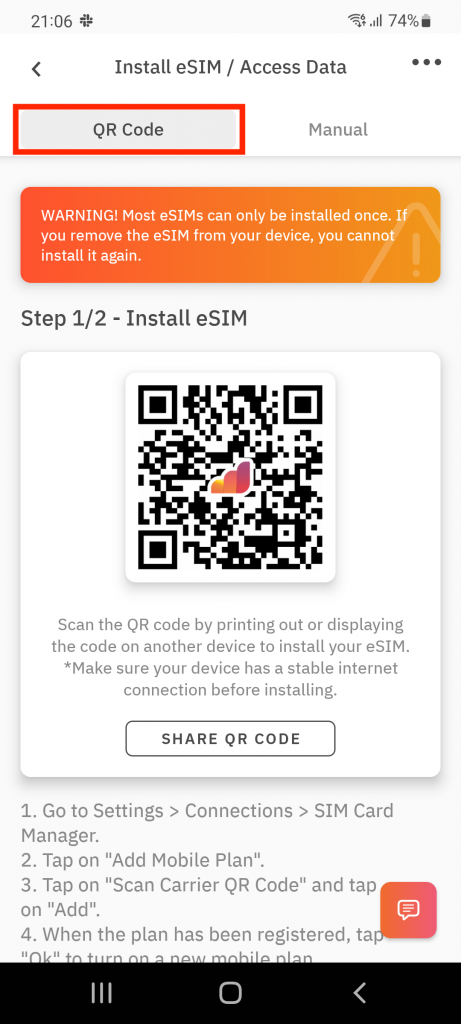
2. Go to Settings on your device
3.Tap on Network & Internet.
4.Tap the Add or + icon next to Mobile Network 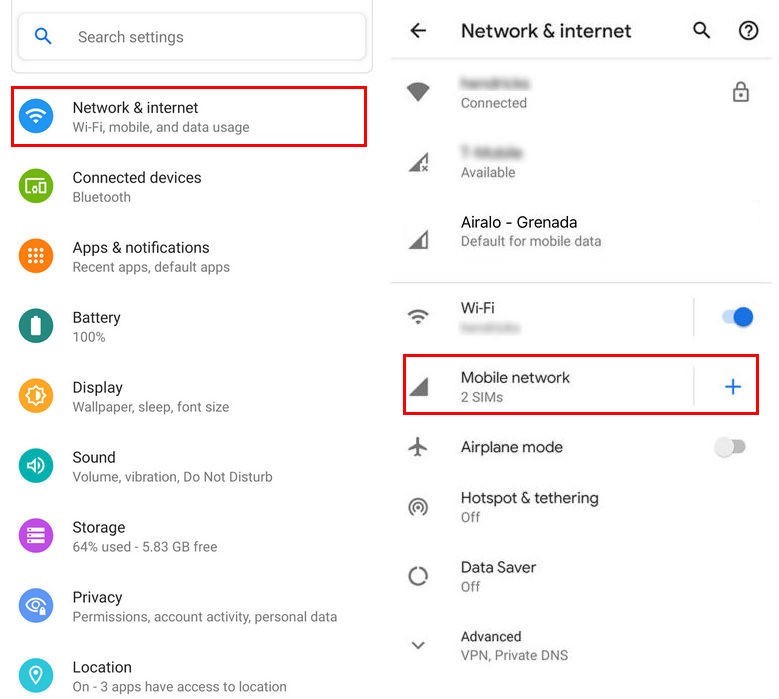
5. Tap Next when asked, “Don’t have a SIM card?”
6. Scan your QR code and add the confirmation code if prompted
7. Go back to your "Install eSIM/Access Data" screen.
8. Turn on eSIM under Mobile Network
9. Enable Mobile Data
10. Enable Data Roaming (Please turn off your primary line to avoid roaming charges from your carrier provider when overseas)
11. Go to Network & Internet and tap on the Mobile network to set the correct network preferences listed in the Additional Info which is at the bottom-right of the selected data package page.
12. Set up an APN(access point name) on your device if required.
Option 2: By adding the details manually
If you are experiencing issues scanning the QR code or are unable to scan the QR code, you can enter eSIM details manually. Please follow these steps:
To add and set up your eSIM via the manual method, please follow these steps: